sqview User Guide
sqview is a keyboard-first terminal application for browsing and editing SQLite databases. Open tables in tabs, narrow results with filters, follow foreign keys, inspect records, and export the rows you need.
The GitHub repository is named sqv; the installed command and Debian package are named sqview.
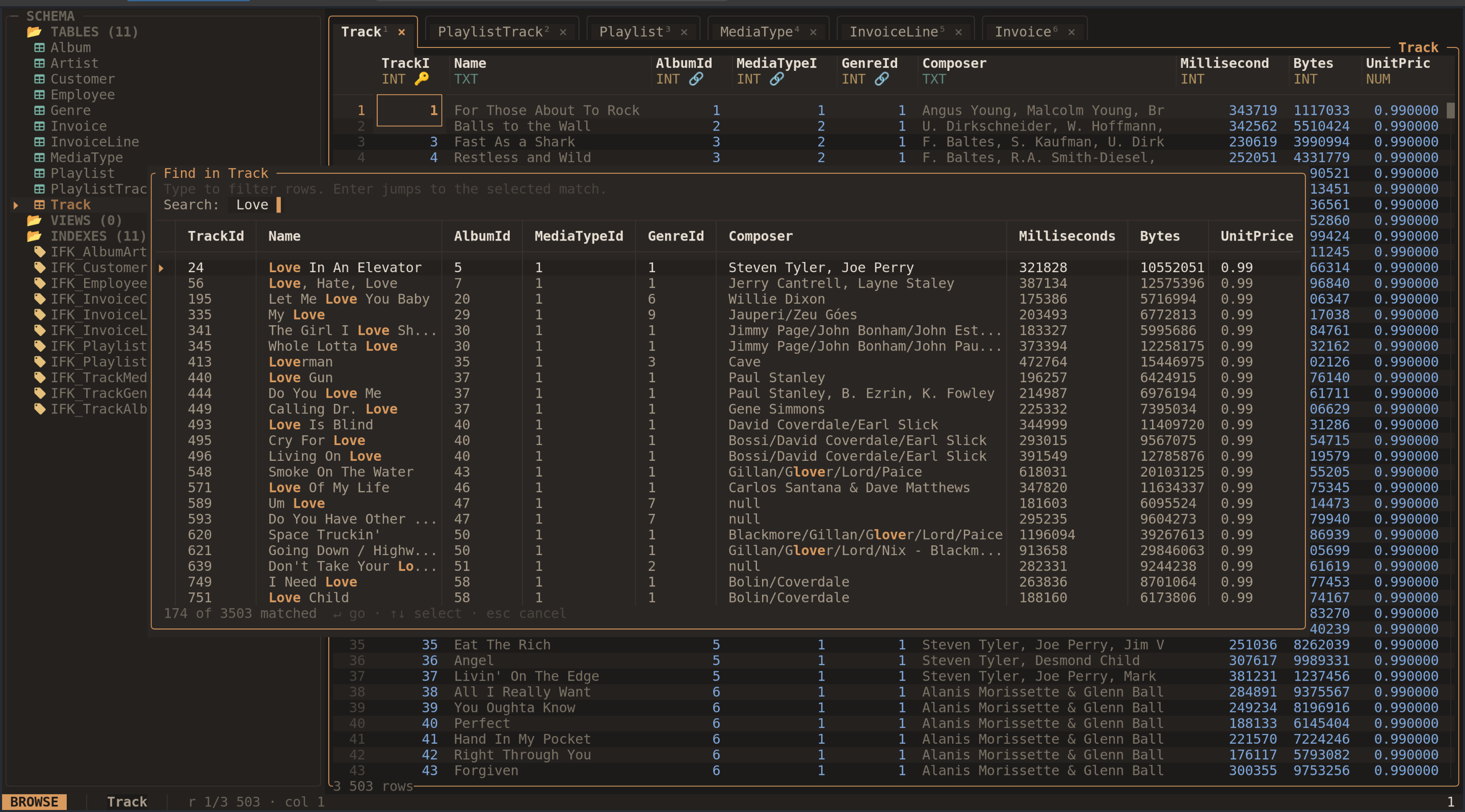
Find in table shows matching rows while keeping your database workspace open. Select the screenshot to view it at full size. The screenshots are from the project README and show a sample music-store database; visual details may vary with your version and configuration.
Start with installation and your first session. Then choose a task: browse, filter and sort, search, inspect, edit, run SQL, or copy and export.
Press ? inside sqview for help or Ctrl-P for the command palette. The palette
lets you search for commands by name and lists available table-opening commands.
Popup footers show the controls for the current task.
For inspection with writes disabled, open your database with:
sqview path/to/database.db --readonly
The guide describes sqview 0.4.0. Configuration, the shortcut reference, and troubleshooting cover setup and common questions.
Install and get started
Debian or Ubuntu
Download and install the latest Linux amd64 package:
tmp_deb="$(mktemp /tmp/sqview-linux-amd64.XXXXXX.deb)"
curl -fL --retry 5 --retry-all-errors --retry-delay 2 -o "$tmp_deb" \
  https://github.com/mendrik-private/sqv/releases/latest/download/sqview-linux-amd64.deb
chmod 0644 "$tmp_deb"
sudo apt install "$tmp_deb"
rm -f "$tmp_deb"
The package installs sqview. Ubuntu also has an unrelated OpenPGP tool named
sqv, so use sqview to launch this application.
Linux release binary
curl -fL --retry 5 --retry-all-errors --retry-delay 2 -o sqview-linux-x86_64.tar.gz \
  https://github.com/mendrik-private/sqv/releases/latest/download/sqview-linux-x86_64.tar.gz
tar -xzf sqview-linux-x86_64.tar.gz
sudo install -m 0755 sqview /usr/local/bin/sqview
See GitHub Releases for the available versions and assets.
Build from source
Install a stable Rust toolchain, then clone and install the application:
git clone https://github.com/mendrik-private/sqv.git
cd sqv
cargo install --path . --bin sqview
You can also run directly from the checkout:
cargo run --release -- path/to/database.db
Open a database
sqview [OPTIONS] <DB_PATH>
sqview check-terminal
sqview paths
| Argument or option | What it does |
|---|---|
DB_PATH | Opens an existing SQLite database file; quote paths containing spaces. |
:memory: | Opens a temporary in-memory database for this session. |
--readonly | Disables database writes for the entire session. |
--no-watch | Disables automatic refresh when another program changes the database files. |
--help | Prints usage, options, and examples. |
--version | Prints the installed version. |
check-terminal | Prints terminal capability hints without opening a database. |
paths | Prints configuration, data, saved-view, and SQL-history locations. |
An ordinary database path must already exist. To try sqview without a file,
run sqview :memory: and use the SQL console to create a table.
An in-memory database disappears when you quit.
Your first session
- Run
sqview path/to/database.db --readonly. - In the sidebar, select a table with
↑and↓, then pressEnter. - Move through cells with the arrow keys. Press
vto inspect a whole record. - Press
Escto close the record, thenCtrl-Fto find a row. - Press
Ctrl-P, type a command name, and pressEnterto run it. - Press
Ctrl-Qto quit.
Use browsing to learn tabs, panels, and large-table navigation.
Browse tables and tabs
The sidebar groups tables, views, and indexes. The grid shows the active table or view. Tabs sit above the grid, and the status bar shows the current position and application state, including read-only mode.
Open tables and move between panels
Select an item in the sidebar with ↑/↓ or j/k. Use ←/→ or h/l
to collapse or expand groups. Enter opens a table or view. The command palette
(Ctrl-P) also offers Open table: … commands.
Tab and Shift-Tab switch focus between sidebar and grid. Ctrl-B hides or
shows the sidebar to give wide tables more room. In the sidebar, Esc returns
focus to the table; in the grid, Esc clears the row selection first, then
returns focus to the sidebar.
Navigate the grid
| Keys | Destination |
|---|---|
Arrow keys or h j k l | Adjacent cell |
Home / End | First / last column |
Ctrl-Home / Ctrl-End | First / last cell of the current table view |
PgUp / PgDn or Ctrl-↑ / Ctrl-↓ | One page up / down |
Ctrl-G | A row number in the current filtered and sorted view |
On a foreign-key cell, j follows the link
instead of moving down. Use ↓ when you want to keep browsing that column.
sqview loads rows in windows as you scroll, so browsing does not require loading the entire table into the grid. Filters and sorts can still take time on large databases.
Keep multiple tables open
Opening a table creates or activates its tab. Tabs retain their grid position when you switch away and return.
1–9select tabs 1–9;0selects tab 10.]/[orCtrl-PgDn/Ctrl-PgUpmove to the next / previous tab.Ctrl-Wcloses the current tab.- Click a tab to activate it; middle-click or click its close button to close it.
Filters, sort keys, widths, hidden columns, and the frozen first column are saved per database and table.
Use the mouse
Click a cell to focus it, and click a column header to sort. Scroll the panel
under the pointer with the wheel; Shift-wheel scrolls columns. Scrollbars can
be dragged. Click the row gutter to select a row or Ctrl-click it to toggle
rows in a selection.
Use filtering and sorting to shape a table, or selection and copying to collect rows.
Filter, sort, and arrange columns
Filter a column
Focus a column and press f, or choose Filter column in the command palette.
The popup contains a rule list, an operator, and a value field. Use Tab and
Shift-Tab to move between them.
- Select the new-rule entry or an existing rule.
- Focus the operator and change it with arrow keys or
Space. - Focus the value field, type a value, and press
Enterto apply the rule. - Press
Escto close the popup when finished.
Changes to the rule list apply as you make them. In that list, Space enables
or disables a rule; Delete or Backspace removes it. Invalid values and
regular expressions show an error for correction.
| Operator | Matching behavior |
|---|---|
< | Less than the typed value |
> | Greater than the typed value |
== | Equal to the typed value |
contains | Literal substring; % and _ are ordinary characters |
regexp | Matches a regular expression, such as `^(draft |
Comparison values are interpreted using the column’s declared type. contains
uses SQLite’s LIKE matching, which is case-insensitive for ASCII letters.
Regular expressions are case-sensitive unless you use a flag such as (?i).
Multiple enabled rules in one column are alternatives (OR). Filters on
different columns must all match (AND). For example, status == draft and
status == pending, combined with amount > 100, mean:
(status is draft OR pending) AND amount is greater than 100
Press F in the grid or choose Clear filters to clear every column filter.
Sort rows
Press s on a column to cycle through ascending, descending, and unsorted.
Clicking a header also changes sorting. S adds the focused column as another
sort key, letting you group by one column and order within each group by another.
When the primary sort is a text column, press ' followed by a letter to jump
to that letter. You can also click a letter in the alphabet rail when it is shown.
Arrange columns
| Control | Result |
|---|---|
< / > | Narrow / widen the focused column |
- | Hide the focused column |
Show hidden columns in Ctrl-P | Choose a hidden column to restore |
Freeze / unfreeze first column in Ctrl-P | Keep the first column visible while scrolling horizontally |
Hiding a column affects the grid presentation. Exports and row copies still include all table columns. Your arrangement, filters, and sorts are saved automatically.
Find rows and search databases
Find in the current table
Press Ctrl-F or choose Find in table from Ctrl-P. Type a search term to
show matching rows. The search respects the current table’s filters and order.
Choose a result with ↑/↓ and press Enter to focus that row in the grid.
Ctrl-←/Ctrl-→ scroll result columns; Esc closes the popup.
Search results include multiple columns so you can identify the right row.
The result list is limited to 500 matches. Narrow the term or add column filters if you need a more specific result. Finding a row changes focus; it does not create a permanent column filter.
Search all tables
Open the command palette and choose Search all tables. Type at least two
characters to search
tables and views across the database. Choose a hit and press Enter to open its
table and focus the matching row where possible. The list is limited to 20
matching rows per table or view, and 500 hits across the database.
If a saved table filter hides a matching row, clear that filter with F and
search again. Views and tables without a usable row identity have more limited
row navigation.
Go to a row number
Press Ctrl-G, type a row number, and confirm with Enter. This number is a
position in the current filtered and sorted grid, starting at 1. It is separate
from a database primary-key value.
For an exact ID, use an equality filter or a SQL query.
Inspect records, schema, and links
Read a whole record
Focus a row and press v, or choose Show row as record in the command
palette. The popup shows fields vertically and the selected value in full,
which is useful for wide tables and long text.
Move between fields with arrow keys. y copies the selected value. Enter
opens its editor when the table is editable. Esc or v closes the record.
When a text value contains a JSON object or array, o opens a tree viewer.
Enter folds a node, ←/→ collapse or expand it, and y copies the selected
node. Esc returns to the record.
Inspect schema and indexes
In the sidebar, select a table, view, or index and press i. You can also choose
Show schema from the command palette for the active table. The schema popup
shows the SQL definition and available column, key, or index information.
Choose Reload schema from the palette after an external schema change if
the sidebar needs refreshing, especially when using --no-watch.
Follow relationships
A foreign-key cell links to a referenced row. Focus it and press j, or select
the linked field in record view and press j. Backspace returns after following
a link.
To go in the other direction, focus a row and press r or choose Show
referencing rows. Select a relationship and press Enter. sqview opens the
referencing table with an equality filter for the current key value.
That filter is saved like other table filters. Press F in the destination
table to see all its rows again. Backspace navigates back.
Relationships come from declared SQLite foreign keys. A column containing an ID without a foreign-key declaration does not automatically become a link.
Edit cells and rows
Edits write directly to the database when confirmed. There is no separate whole-database Save step. Use a disposable copy when experimenting with changes.
Edit a cell
Focus a cell and press Enter. sqview chooses an editor for the column and
value: text, a value list, a date or datetime picker, or a foreign-key picker.
Press e to edit the value directly as text instead. Popup footers show the
available controls.
In the text editor, Enter saves, Alt-Enter inserts a newline where supported,
and Esc cancels. In a value list or foreign-key picker, type to search,
select an entry, and press Enter to confirm.
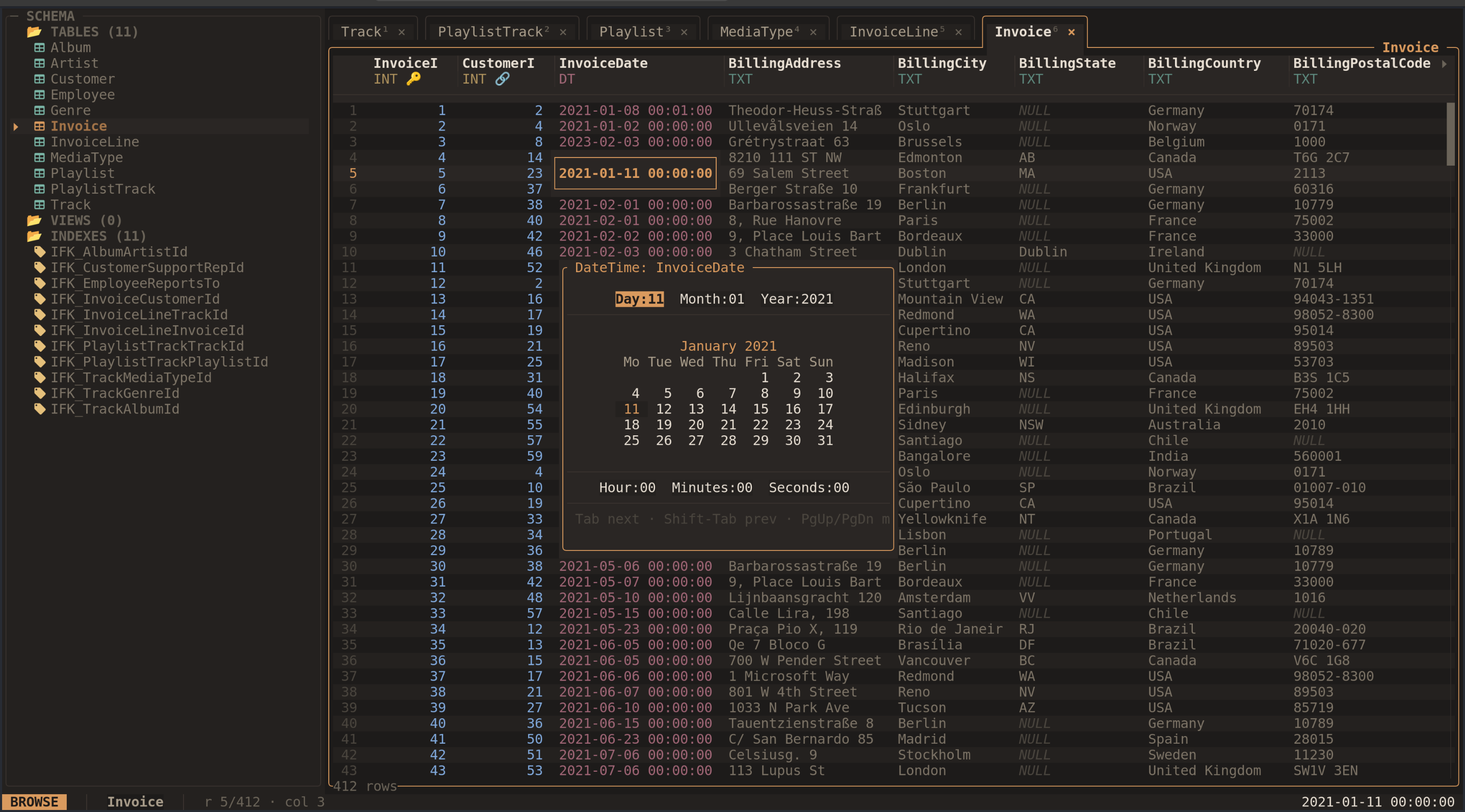
The datetime picker exposes the date and time of the focused cell.
In the date picker, Tab moves between fields and PgUp/PgDn change month.
Enter saves and Esc cancels. Press n in the grid to set a cell to SQL NULL;
this differs from an empty string. Database constraints may reject a value.
Insert a row
Press i or Insert to stage a new row below the current position. Type values
in its fields. Enter, Tab, or ↓ moves to the next field; Shift-Tab or ↑
moves to the previous field. Shift-Delete resets the current field to untouched.
Untouched fields use the database’s default or automatic value where available.
Generated columns are displayed but cannot be filled in. Press Alt-Enter to
commit the row, or Esc to discard it. Once inserted, the row’s database order
is determined by your current sort and filters.
Delete rows
d or Delete deletes the focused row, or the selected rows when a selection
exists. Review the confirmation and press y to proceed; n or Esc cancels.
Ctrl-A selects all rows in the current filtered view, including rows beyond
the visible page. Check the scope before confirming.
Undo a write
Ctrl-Z or Undo last write reverses recorded cell updates, row inserts, and
row deletions during the current session. The history holds up to 100 recorded
operations and is lost when you quit. It does not cover SQL console statements.
Constraints or external database changes can prevent an undo from succeeding.
Read-only behavior
--readonly disables database writes and cannot be switched off inside that
session. Restart without the flag to edit. For a database opened writable,
Toggle read-only in the command palette switches the application’s write
mode; the status bar shows the current mode.
SQLite views and tables without a usable rowid are read-only in the grid. Generated columns are also read-only. The SQL console is a separate route for supported SQL writes when the session allows them.
Run SQL
Press : or choose SQL console from the command palette. Type a statement
and press Enter to execute it. Query results appear below the input; write
statements report the number of changed rows. Errors appear in the console.
For example, replace the table and column names with ones in your database:
SELECT name FROM sqlite_master WHERE type = 'table' ORDER BY name;
The console displays up to 1,000 result rows and indicates when results are
truncated. Add a WHERE clause or a LIMIT for a focused query. Arrow keys and
PgUp/PgDn scroll the results; Ctrl-←/Ctrl-→ scroll columns. Esc closes
the console.
Ctrl-P and Ctrl-N inside the console browse previous and next statements.
These keys control history while the console is open. History is saved in the
SQL-history file reported by sqview paths.
Writes and schema changes
In a writable session, SQL can change data and schema. Successful write statements request a refresh of the database workspace. In read-only mode, writes are refused. SQL writes are outside the grid’s undo history.
Try a temporary database
Run sqview :memory:, open the console, and execute each statement separately:
CREATE TABLE notes (id INTEGER PRIMARY KEY, title TEXT NOT NULL);
INSERT INTO notes (title) VALUES ('First note'), ('Second note');
SELECT * FROM notes;
Close the console and open notes from the sidebar. If needed, use Reload
schema in the command palette. This database is temporary and disappears
when sqview exits.
Copy and export
Select rows
Space toggles the focused row. Shift-↑/Shift-↓ extend a selection, and
Ctrl-A selects all rows in the current filtered view. Esc clears the selection.
The mouse offers row-gutter selection and Ctrl-click to toggle individual rows.
A selection can include rows outside the visible page. Filters determine the view that selection and whole-view export operate on.
Copy to the clipboard
| Command | Content |
|---|---|
y or Ctrl-C in the grid | Focused cell |
Y or Copy rows as JSON | Selected rows, or the focused row if there is no selection |
| Copy rows as CSV | Selected rows or focused row, including a header |
| Copy rows as SQL inserts | Selected rows or focused row as INSERT statements |
| Copy column values | Focused column for the selection, or the whole current view if nothing is selected |
Commands without a direct key are in Ctrl-P. Row copies include all columns,
including hidden ones. Clipboard support depends on the terminal’s clipboard
integration; see troubleshooting.
Export a view or selection
- Open
Ctrl-Pand choose Export as CSV…, Export as JSON…, or Export as SQL…. - Edit the destination path. The default suggests a timestamped file in your home directory.
- If rows are selected, use
Tabto switch between the selection and the whole current view. Selection-only is the default when a selection exists. - Press
Enterand wait for the completion message, orEscto cancel the popup.
Whole-view export includes all rows matching your filters in the current sort order, including rows that are not loaded on screen. Export includes hidden columns. It replaces an existing destination file after successfully writing the export; choose a new path if you want to keep an earlier file.
| Format | Output |
|---|---|
| CSV | Header row followed by data rows; SQL NULL becomes an empty field |
| JSON | Array of objects keyed by column name; SQL NULL becomes JSON null |
| SQL | INSERT statements with quoted table and column names; no schema definition |
BLOBs become JSON null and are not preserved by JSON export. Use an SQLite
backup when you need a complete database copy with schema and binary data.
Export also works in read-only mode because it writes an output file without
changing the database.
Configuration and saved views
Run this command to locate the files sqview uses on your platform:
sqview paths
It prints config, data, views, and history paths. On Linux the config
normally lives at $XDG_CONFIG_HOME/sqview/config.toml, or
~/.config/sqview/config.toml when XDG_CONFIG_HOME is unset. Use the reported
paths rather than assuming the same directories on every platform.
Theme and symbols
The first database session creates a configuration file if it is missing. That file lists the default colors and glyphs. Edit it and restart sqview to apply changes. Omitted settings retain defaults.
nerd_font = false

[theme]
accent = "#d99a5e"
bg = "#23211f"

[symbols]
table_icon = "[T]"
view_icon = "[V]"
selection = ">"
tab_close = "x"
nerd_font = true uses the default Nerd Font icons; false selects text-based
alternatives. Symbol overrides still apply to the chosen set. Theme colors use
hexadecimal RGB values such as #d99a5e.
Drawing symbols such as borders, cursors, and selection markers must be single characters occupying one terminal cell. Icon strings can contain multiple characters. Invalid configuration or symbol values produce a startup error.
Saved table views
sqview automatically saves filters, sort keys, hidden columns, column widths,
and whether the first column is frozen. Settings are stored per database and
table in the views directory reported by sqview paths.
Opening a table restores its saved settings. Closing a tab does not clear them.
If rows appear to be missing, press F to clear restored filters. To reset all
saved views, quit sqview and move the reported views directory aside before
reopening the application.
Tab positions last while tabs stay open in the current session. Saved view settings do not reopen your previous session’s tabs.
External changes and history
By default, sqview watches the database and its WAL/shared-memory companions
for external changes and refreshes the workspace. --no-watch disables this
watcher. The in-memory database is not watched.
SQL statements are saved separately in the history file. Grid undo history is
session-only and is separate from SQL statement history.
Keyboard and mouse reference
Press ? in sqview for help. Ctrl-P opens the command palette, which includes
commands such as export, copying as CSV or SQL, global search, restoring hidden
columns, freezing the first column, reloading schema, and toggling read-only.
Keys depend on focus. For example, i inserts a row in the grid and shows schema
in the sidebar. j follows a foreign-key link when one is focused; ↓ always
moves down. In the SQL console, Ctrl-P recalls a statement from history.
The tables below share the README’s keymap section, which is checked against the application’s built-in help. Popup footers provide additional controls for individual tasks.
Move
| Keys | Action |
|---|---|
↑↓←→ / h j k l | Move between cells |
Home / End | First / last column |
Ctrl-Home / Ctrl-End | First / last cell of the table |
PgUp / PgDn | Scroll one page |
Ctrl-↑ / Ctrl-↓ | Scroll one page |
Ctrl-G | Go to row number |
' then a letter | Jump to letter in a text-sorted column |
Select & copy
| Keys | Action |
|---|---|
Shift-↑ / Shift-↓ | Extend the row selection |
Space | Toggle the focused row |
Ctrl-A | Select all rows |
Esc | Clear the selection, then focus the sidebar |
y / Ctrl-C | Copy the focused cell |
Y | Copy the focused or selected rows as JSON |
Edit
| Keys | Action |
|---|---|
Enter | Edit the cell with the matching picker |
e | Edit the value as text |
n | Set the cell to NULL |
i / Ins | Insert a row below |
d / Del | Delete the focused or selected rows |
Ctrl-Z | Undo the last write |
Inspect
| Keys | Action |
|---|---|
v | Show the focused row as a record |
j | Follow the link on a foreign-key cell |
r | Rows in other tables that reference this row |
Backspace | Go back after following a link |
Ctrl-F | Find rows in this table |
: | SQL console |
Filter, sort & columns
| Keys | Action |
|---|---|
f | Filter the focused column |
F | Clear all filters |
s | Sort by the focused column (asc, desc, off) |
S | Add the focused column as a further sort key |
< / > | Narrow / widen the focused column |
- | Hide the focused column |
Tabs & panels
| Keys | Action |
|---|---|
Tab / Shift-Tab | Switch focus between sidebar and table |
Ctrl-B | Show / hide the sidebar |
1-9 / 0 | Go to tab 1-10 |
] / [ / Ctrl-PgDn / Ctrl-PgUp | Next / previous tab |
Ctrl-W | Close the current tab |
Sidebar
| Keys | Action |
|---|---|
↑↓ / j k | Move |
← → / h l | Collapse / expand a section |
Enter | Open a table or view, fold a section |
i | Show the schema of the selected item |
Esc | Back to the table |
Popups
| Keys | Action |
|---|---|
Esc | Close |
Enter | Confirm the selection |
↑↓ PgUp PgDn Home End | Move in lists |
typing | Filter the list or edit the field |
Ctrl-A / Ctrl-E | Start / end of the input |
Ctrl-U / Ctrl-W | Delete to start / previous word |
Alt-Enter | New line in the editor; save a staged row |
y / n | Confirm / cancel a deletion |
Mouse
| Keys | Action |
|---|---|
Wheel | Scroll the panel or list under the pointer |
Shift-wheel | Scroll table columns |
Click | Focus a cell, select a list item |
Click header | Sort by that column |
Click / Ctrl-click gutter | Select / toggle rows |
Drag scrollbar | Scroll |
Click rail letter | Jump to that letter |
Click / middle-click tab | Activate / close the tab |
App
| Keys | Action |
|---|---|
Ctrl-P | Command palette: export, copy as CSV/SQL, search all tables, columns |
? | This help |
Ctrl-Q | Quit |
Troubleshooting
The sqv command opens an unrelated tool
Launch sqview. The repository is named sqv, but the binary and Debian package
are sqview to avoid the OpenPGP tool’s name collision.
The database path is rejected
sqview requires an existing file, except for :memory:. Check the path and
quote it if it contains spaces:
sqview "path/to/my database.db" --readonly
If an existing file fails to open, check that it is SQLite and that you have the required file and directory permissions.
A table looks empty or a row cannot be found
Press F to clear saved filters. Row numbers belong to the current filtered
and sorted view; use a filter or SQL for a primary-key lookup. Search result
lists are capped, so narrow your term if a broad search omits the desired row.
Editing is disabled
Check the read-only indicator. A session started with --readonly must be
restarted without it to enable writes. Toggle read-only applies to writable
sessions. SQLite views, generated columns, and tables without a usable rowid
cannot be edited through the grid. Constraint errors must be corrected before
a write can succeed.
Icons or colors look wrong
Run sqview check-terminal for environment-based capability hints. It cannot
detect whether your font supplies Nerd Font glyphs. Set nerd_font = false
in the configuration file and restart if icons are missing.
For the full palette, use a terminal configured for truecolor.
If a config edit prevents startup, use sqview paths to find the file, correct
the reported setting, or move the file aside so the next launch creates defaults.
Alt-Enter or another shortcut is intercepted
Check terminal or window-manager shortcuts. sqview enables enhanced keyboard reporting when the terminal supports it; some terminal configurations still intercept key combinations. Popup footers show the expected binding. Use the command palette for commands with an alternative there.
Clipboard copy does not reach the desktop
sqview uses the terminal clipboard protocol (OSC 52). Your terminal, SSH setup, or multiplexer must allow clipboard integration. If it blocks the operation, use file export to retrieve data.
External changes do not appear
Check whether you started with --no-watch. Choose Reload schema from the
palette and reopen the table as needed. File watching covers the database and
its WAL/shared-memory files; it is not enabled for :memory:.
Export fails or overwrites an earlier file
Choose a writable destination in an existing directory. Export replaces an
existing file at the chosen path; use a new filename to retain both versions.
JSON export represents BLOBs as null, so use a database backup for complete
binary-data preservation.
Report a problem
Open an issue on GitHub with:
sqview --versionand your operating system;- your terminal and the output of
sqview check-terminal; - what you did, what happened, and the expected behavior;
- a small reproduction database or SQL example, when possible.
Use a minimal sample that you are comfortable sharing publicly.